
- Prepare two textured images
- Type text in white with a blocky font
- Select the white text area
- Cut the selected area off the texture and paste it onto a new layer
- Adjust Saturation

- Open an image and duplicate the layer
- Image > Adjustments > Desaturate
- Duplicate the desaturated layer
- Image > Adjustments > Invert
- Set the inverted layer to Color Dodge
- Filter > Others > Minimum - Radius: 1
- Edit Layer Style and go to Blending Options
- Adjust Underlying Layer by holding Alt and left-clicking - Values: 10, 70, 255
- Merge two layers on top and duplicate it
- Filter > Blur > Gaussian Blur - Radius: 7.5px
- Set the blurred layer to Linear Burn
- Duplicate the original layer and bring it to top
- Filter > Artistic > Palette Knife - Stroke Size: 10, Stroke Detail: 2, Softness: 5
- Set the top layer to Multiply

- Select different colors for the foreground/background
- Filter > Render > Clouds
- Filter > Noise > Add Noise - Amount: 5%, Distribution: Gaussian, Monochromatic
- Create a new Alpha Channel
- Filter > Render > Difference Clouds
- Filter > Noise > Add Noise - Amount: 5%, Distribution: Gaussian, Monochromatic
- Edit > Fade Add Noise - Opacity: 50%
- Filter > Render > Difference Clouds
- Repeat Difference Clouds two to five more times
- Duplicate the colored layer and turn off the top layer
- Select the bottom layer
- Filter > Render > Lighting Effects - Intensity: 55, Focus: 90, Gloss: -100, Material: 50, Ambience: 6, Texture Channel: the alpha channel, White is high, Height: 100
- Turn on the top layer
- Filter > Render > Lighting Effects - Intensity: 55, Focus: 90, Gloss: -50, Material: 50, Ambience: 6, Texture Channel: the alpha channel, White is high, Height: 100

- Prepare a photo which has many vertical straight lines at different angles
- Image > Adjustments > Threshold
- Type text and rasterize it
- Select black areas of the photo layer
- Select the text layer and delete the selected areas

- Open an image for the background
- Type text in black
- Open Layer Style Window and change Fill Opacity to 3%
- Apply Drop Shadow - Blend Mode: Multiply, Opacity: 100%, Angle: 90, Distance: 1px, Size: 1px, Contour: Gaussian
- Apply Inner Shadow - Blend Mode: Color Burn, Opacity: 45%, Size: 10px
- Apply Inner Glow - Blend Mode: Overlay, Opacity: 30%, Color: Black
- Apply Bevel and Emboss - Style: Inner Bevel, Technique: Chisel Hard, Depth: 250%, Size: 15px, Soften: 10px, Angle: 90, Altitude: 30, Highlight Mode Opacity: 100%, Shadow Mode: Color Dodge, Shadow Mode Opacity: 35%
- Filter > Pixelate > Crystallize - Cell Size: 10px
- Filter > Blur > Box Blur - Radius: 1px

- Double-click on Pencil Tool - Fidelity: 0.5px, Fill new pencil strokes, Keep selected
- Draw a shape of a brush stroke and fill it with light gray
- Draw a shape of a larger brush stroke and fill it dark gray
- Draw a shape of the largest brush stroke and keep it transparent
- Align and select all the shapes
- Object > Blend > Blend Options - Smooth Color
- Object > Blend > Make
- Set the blended shape to Multiply in Transparency Window
- Drag the blended shape into Brushes Window - New Art Brush, Method: Tints
- Select the foreground color dark blue and the background color black
- Create a new layer
- Filter > Render > Clouds
- Create a new layer and fill it with black
- Filter > Noise > Add Noise - Amount: 30, Gaussian, Monochromatic
- Image > Adjustments > Levels - Input Levels: Black 200
- Set the top layer to Screen

- Create a shape that represents a letter
- Apply Gradient Overlay - Opacity: 100%, Gradient: Black to White, Style: Angle, Angle: depends
- Apply Drop Shadow - Blend Mode: Multiply, Color: Black, Distance: 0px, Spread: 5%, Size: 10px

- Create a new layer and fill it with black
- Select Brush Tool and open Brush Panel Window - Color: White, Master Diameter: 1px, Hardness: 0%
- Edit Shape Dynamics - Angle Jitter: 5%, Roundness Jitter: 5%, Minimum Roundness: 25%
- Edit Scattering - Both Axes, Scatter: 10%, Count: 1, Count Jitter: 50%
- Turn on Smoothing
- Select Pen Tool and draw a path
- Right-click and apply Stroke Path
- Draw more paths and apply Stroke Path each time
- Merge the lines into one layer
- Apply Drop Shadow - Blend Mode: Normal, Color: Pink, Opacity: 75%, Distance: 0px, Size: 0px, Contour: Half Round
- Apply Outer Glow - Blend Mode: Normal, Opacity: 75%, Color: Rainbow gradient, Size: 20px

- Type text
- Type > Create Outlines
- Object > Path > Simplify - Curve Precision: 75%, Angle Threshold: 25
- Experiment with the outcome
- Get an extra large QR image at http://qrcode.kaywa.com/
- Open the image in Photoshop
- Image > Image Size - Document Size: 50mm x 50mm, Resolution: 300pxels/inch, Nearest Neighbor (preserve hard edges)
- Select Magic Wand Tool - Tolerance: 100, Check off Anti-Alias, Check off Contiguous
- Select all the black areas
- Copy and paste the black areas onto a new layer
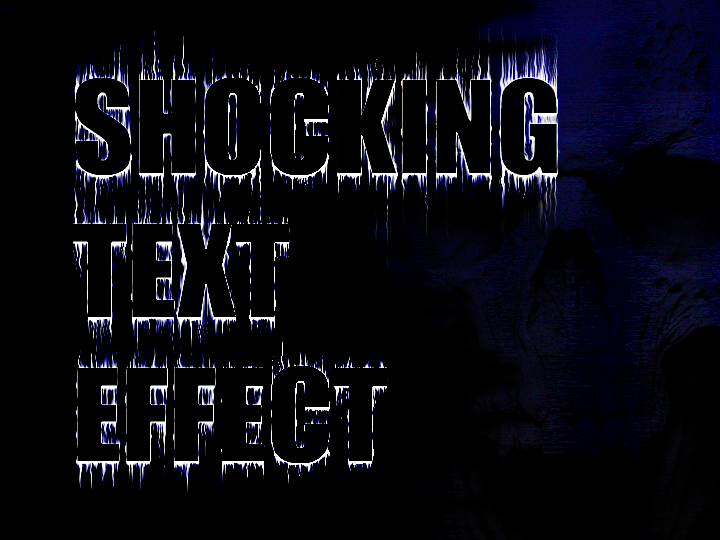
- Create a new layer and fill it with black
- Type text in white
- Duplicate the text and hide the layer
- Rotate the visible text 90 degrees clockwise
- Filter > Stylize > Wind - Method: Wind, Direction: From the Right
- Filter > Stylize > Wind - Method: wind, Direction: From the Left
- Rotate the visible text back 90 degrees counter-clockwise
- Repeat the previous step on both sides
- Filter > Distort > Ripple - Amount: 50%, Size: Small
- Filter > Sharpen > Unsharpen Mask - Amount: 100%, Radius: 5px, Threshold: 0
- Apply Outer Glow
- Reveal the hiden text and fill it with a different color
- Apply Stroke - Size: 1, Position: Inside, Blend Mode: Normal, Opacity: 50%, Color: White
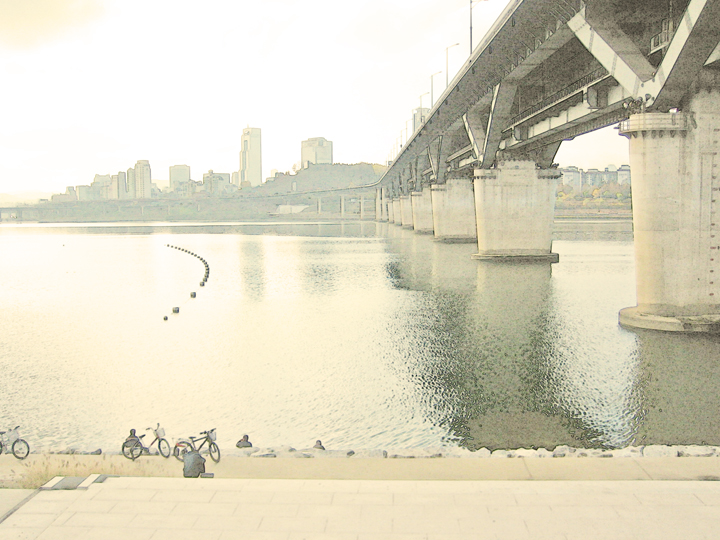
- Open an image and duplicate the layer
- Image > Adjustments > Shadow/Highlight - Shadow Amount: 100%, Highlight Amount: 0%
- Filter > Stylize > Find Edges
- Edit > Fade Find Edges - Opacity: 30-50%, Mode: Luminosity
- Set the layer to Screen if it works
- Adjust Brightness/Contrast
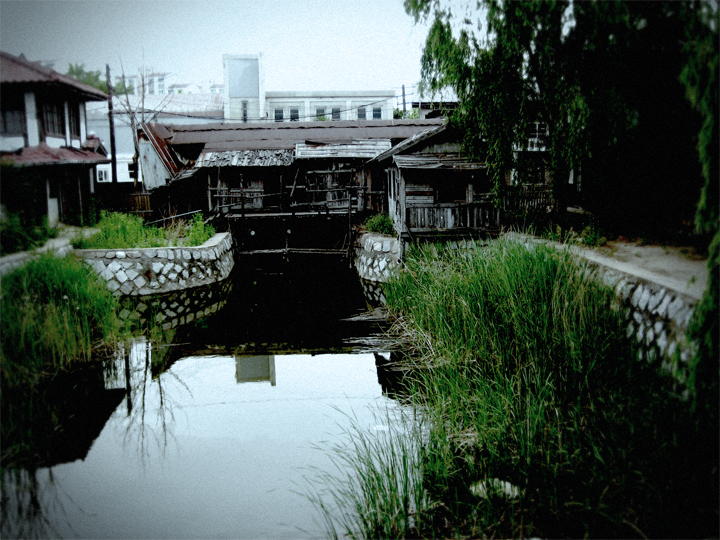
- Open an image
- Image > Adjustments > Hue/Saturation - Saturation: -50
- Image > Adjustments > Exposure - Exposure: 1, Offset: -0.15, Gamma 1
- Duplicate the layer
- Filter > Blur > Lens Blur - More Accurate, Radius: 10, Blade Curvature: 10, Rotation: 50, Brightness: 10, Threshold: 200
- Add Layer Mask to the top layer and create a focus point - Brush Tool - Hardness: 0%
- Create a new layer and fill it with black
- Lower Opacity of the layer to 70%
- Erase the center of the black layer - Eraser Tool - Hardness: 0%
- Flatten all the layers
- Filter > Noise > Add Noise - Amount: 5

- Create random shapes with a few colors to fill the canvas
- Flatten all the layers
- Filter > Distort > Twirl - Angle: 200
- Filter > Blur > Gaussian Blur - Radius: 50px

- Prepare a colorful image
- Select a certain area of the photo and stretch it to fill the canvas
- Experiment with the outcome
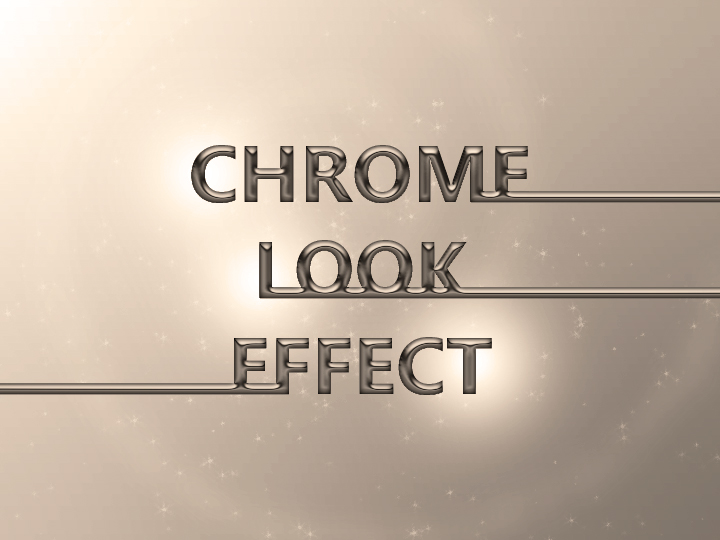
- Type text in black and duplicate it
- Change the color of the top text to light gray
- Select the text shape of the top text
- Filter > Blur > Gaussian Blur - Radius: 3
- Filter > Blur > Gaussian Blur - Radius: 1.5
- Filter > Render > Lighting Effect - Style: Default, Intensity: 28; Texture Channel: Transparency, Height: 30, Angle: Top left
- Image > Adjustments > Curves - RGB 3 points
(Input: 60 - Output: 180)(Input: 120 - Output: 60)(Input: 180 - Output: 180)

- Edit in Quick Mask Mode
- Create a mask with Reflected Gradient Tool
- Filter > Blur > Lens Blur - Radius: 20, Blade Curvature: 0, Rotation: 0
- Image > Adjustments > Hue/Saturation
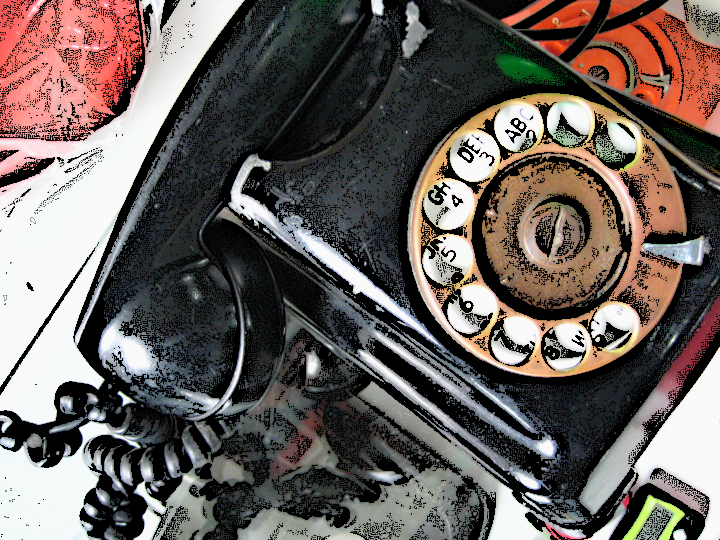
- Prepare an image
- Duplicate the image layer
- Set the foreground color black and the background color white
- Filters > Sketch > Photocopy - Detail: 24, Darkness: 10
- Filters > Sharpen > Sharpen More
- Repeat the previous step a few times
- Set the layer to Overlay
- Select the original layer
- Adjust Hue/Saturation

- Type text in color
- Effect > Distort > Glass - Distortion: 10, Smoothness: 10, Texture: Blocks, Scaling: 200%
- Expand Appearance
- Live Trace
